The Ixel app
The Ixel app puts all of Ixel in one window. The rail down the left side switches between Ask, Board, Agent (beta), Machines, Health and Settings.
The pictures on this page show the app with example models, an example project and example machines. The answers in them are scripted for the pictures.
Open it
- Windows: Ixel is in the Start Menu. It's Edge (or Chrome) in app mode: no tabs or address bar, and a browser profile of its own, so it doesn't touch your normal browsing.
- Mac: Ixel is in the Applications folder in your home folder, and Spotlight finds it too. It opens in a native window with its own Dock icon and menus.
- Linux: Ixel is in your app menu. It opens in a native window when your system has GTK and WebKit, and otherwise in Chrome's or Chromium's app mode.
- From a terminal:
ixel appopens the same window, andixel guiopens it as a tab in your usual browser.
Ixel stops when you close its window. The page and its server run only on your computer: the server listens on 127.0.0.1 and needs a one-time key that's in the link Ixel opens, so other people on your network and other websites can't use it.
Ask
Ask is Ixel MAT's panel: several models answer your question, and one writes the verdict. Your conversations and the models on your panel are down the side, and each question is a thread.
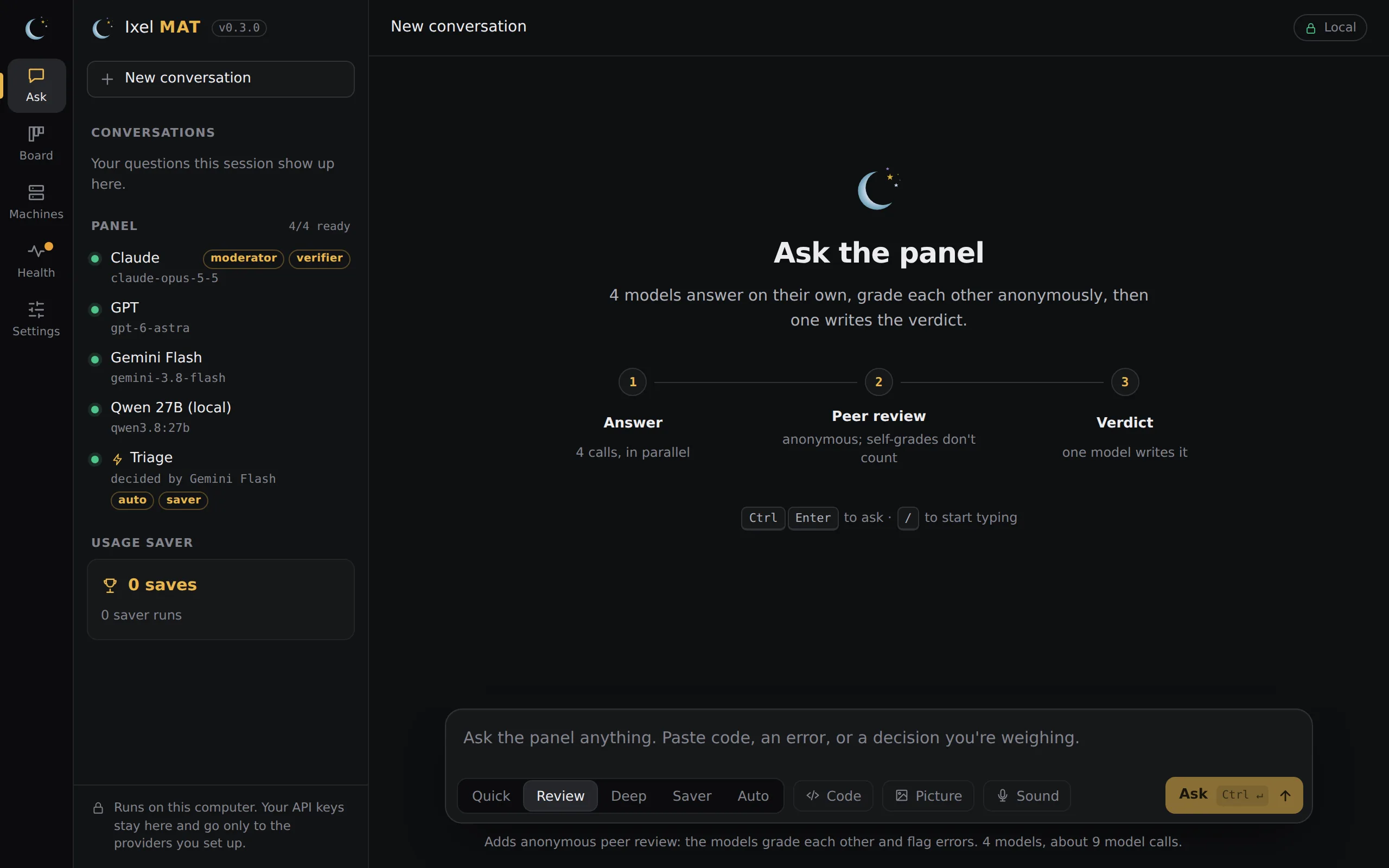
Type your question
Paste code, an error, or a decision you're weighing. / jumps to the box from anywhere on the page.
Pick a mode
The modes are under the box, and the line below them says how many model calls the run will make.
Press Ask
Or press Ctrl Enter (⌘ Enter on a Mac). Stop cancels the run. Closing the window cancels it too, so a review nobody is watching makes no more calls.
| Mode | What happens | Calls, with 3 models |
|---|---|---|
| Quick | Every model answers, then one writes the verdict. No peer review. | 4 |
| Review | Answers, then each model grades the others' answers without knowing whose they are, then the verdict. | 7 |
| Deep | Review, plus a round where each model revises its answer after reading the reviews. | 10 |
| Saver | Cheaper models draft and review; your big model only checks the result. | 4 cheap and 1 big, more if a draft is sent back |
| Auto | Triage picks Quick, Review or Deep for each question. Shown when Triage is on. | Depends on the question |
While the panel works
A grid shows each model's progress, round by round: who's answering, who's done and how long it took. With three or more models, one slow model doesn't hold up the rest. Once the others finish a round, the slow model gets as much time again as they took (at least 30 seconds), and if it's still working after that, the review goes on without it.
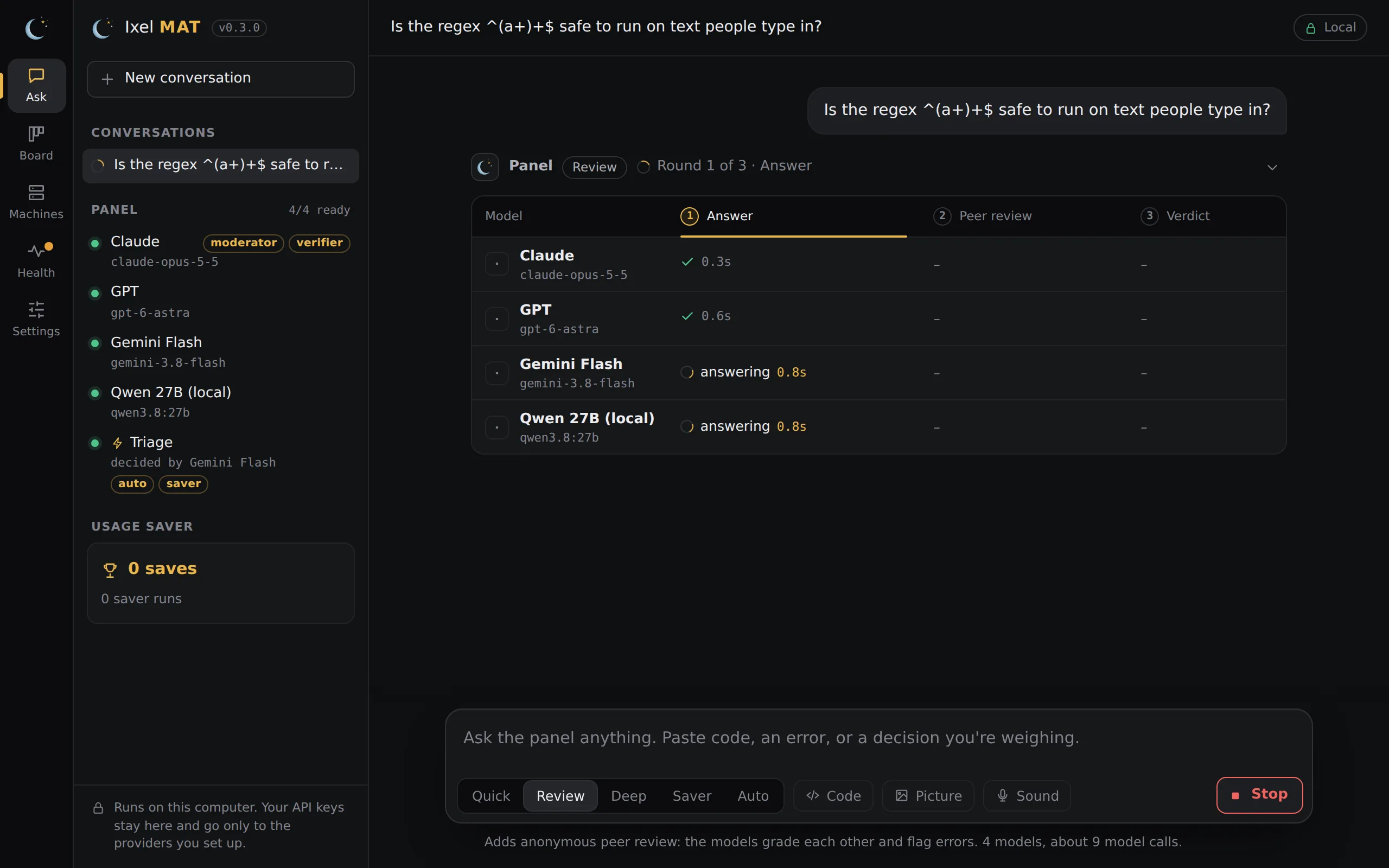
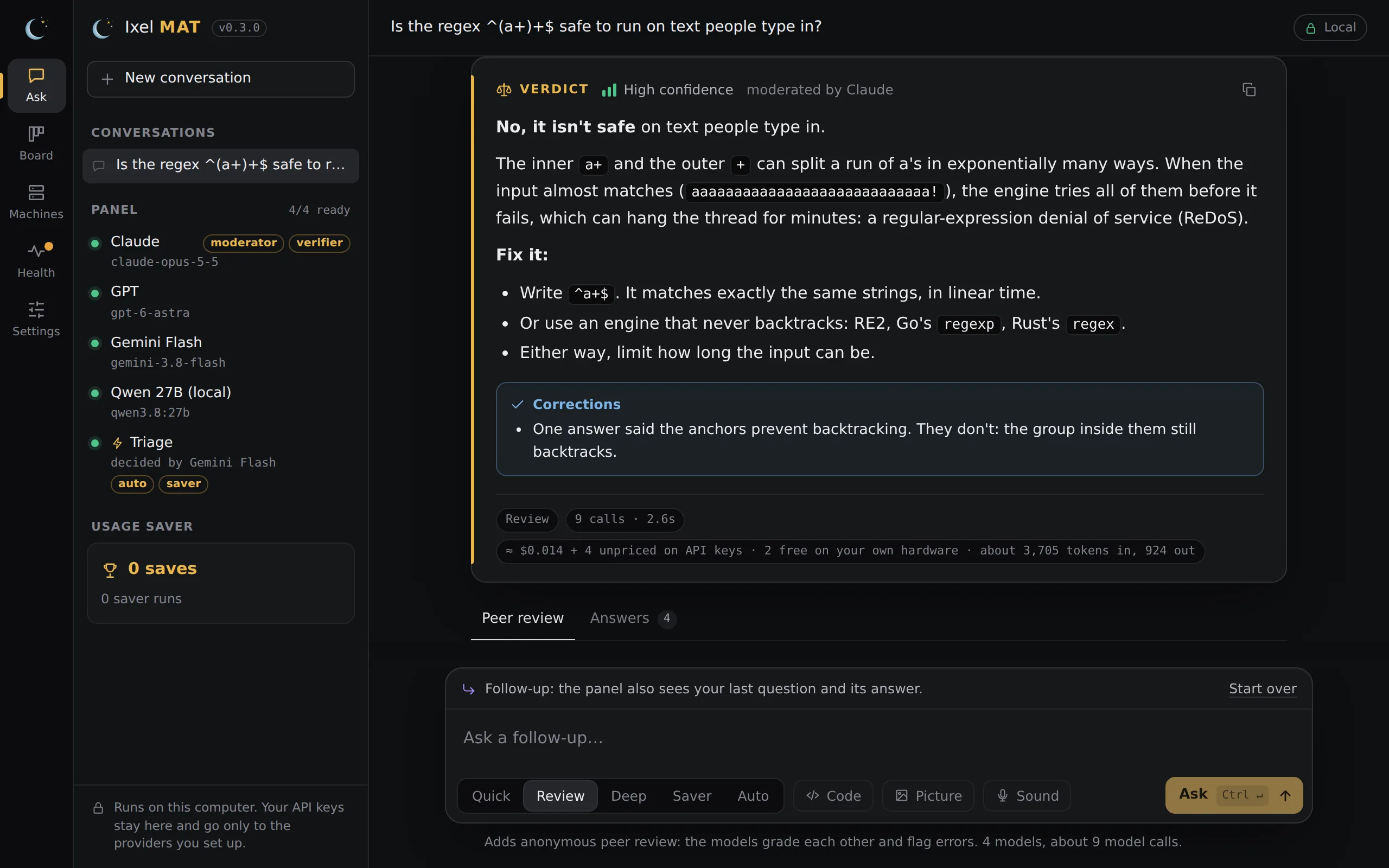
The verdict
The verdict appears as it's written when it comes from Claude Code or an API model; the other programs deliver it all at once. It says how confident the panel is, what it corrected, and where it disagreed. "High" confidence stands only if some answer was rated correct by every reviewer who graded it; otherwise it shows as medium.
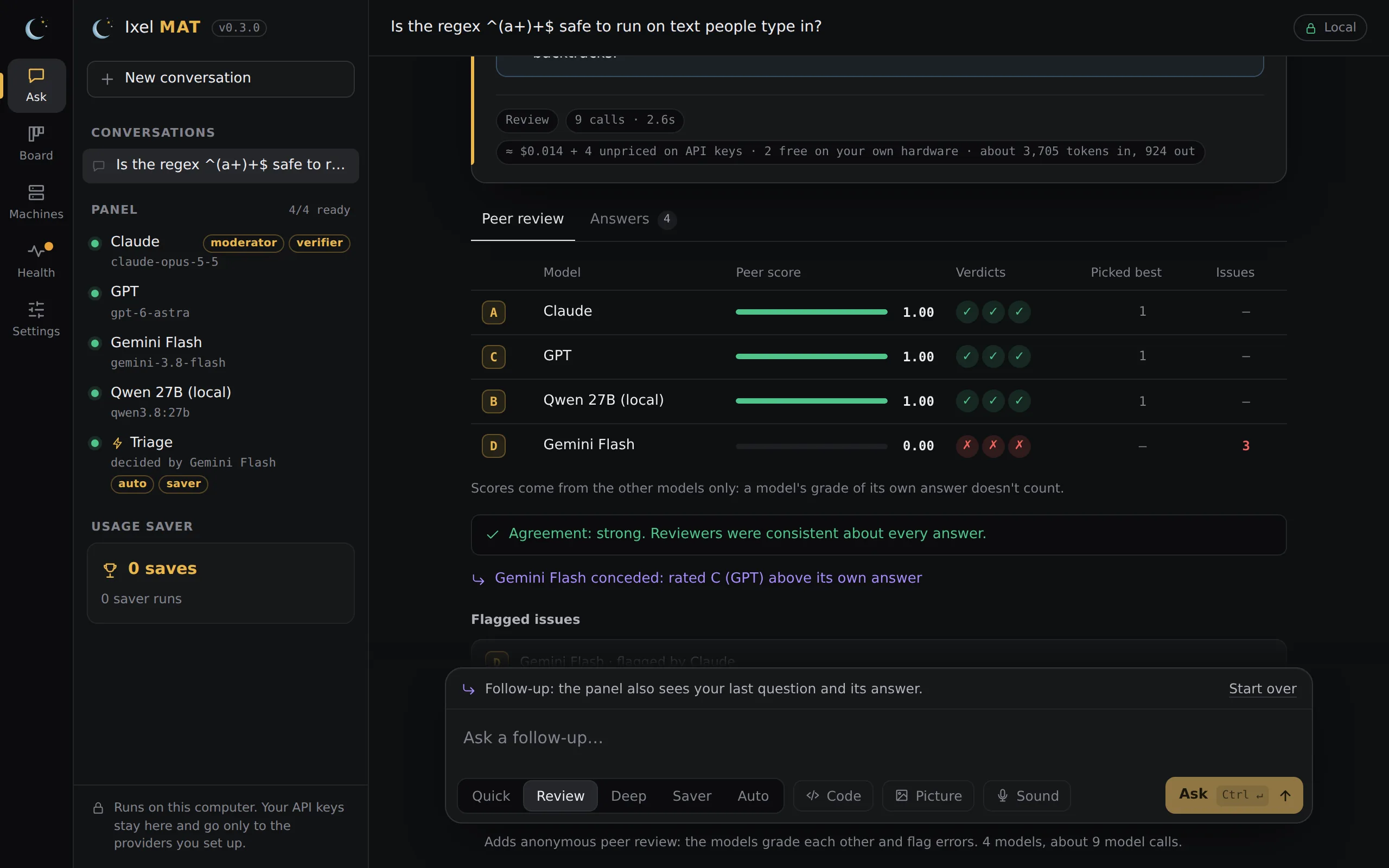
Under the verdict, Peer review shows each model's score and who flagged whom, and Answers shows every answer in full. Answers are labeled A, B, C in a random order, and each reviewer sees them in a different order. A model's grade of its own answer doesn't count. When a model rates another answer above its own, the page says it conceded.
Follow-ups
After an answer, your next question is a follow-up: the panel also sees your last three questions and its answers, so "and in Python?" makes sense. New conversation starts over, and earlier conversations are down the side. They last as long as the window: closing it clears them.
Documents, code, pictures and sound
- Documents: attach Word, PDF, Excel, PowerPoint, OpenDocument, RTF, web pages and text files (or paste or drop them). Ixel reads them on your computer and sends their text and pictures to the panel like anything else you attach.
- Code opens a box for a diff, a file or a document for the panel to check alongside your question. Ixel refuses to send it if it holds what looks like a key or a token, and shows hidden characters as visible markers.
- Picture attaches up to 8 pictures (or paste a screenshot, or drop them on the page). Ixel redraws each one, which removes what a camera writes into a photo (such as where it was taken), and keeps it only in memory. Only models that can see pictures get them, and the page says which before you ask. A video gives six of its frames as pictures, and its sound as text.
- Sound records a voice note or takes a sound file, and writes its words into your question for you to read over. No model on the panel hears the sound: it goes to OpenAI or Groq, with your key, to be written out. To turn it on, add an
OPENAI_API_KEYorGROQ_API_KEYunder Settings, Keys.
Diagrams
With the Diagram Design add-on switched on, Ask has a Diagram button, with a model picker beside it (Haiku if you have it, otherwise your cheapest model). Press it, or start your question with /diagram, and one model draws your answer as a single HTML diagram instead of asking the panel. Ixel runs the add-on's own check on the diagram, gives the model one more try if it fails, and shows the result in a locked-down frame, with Open and Show in folder. Diagrams are saved in ~/.ixel/diagrams.
Hand work to several agents
With Handoff installed, type /handoff in Ask and say who does what:
/handoff codex review my changes, grok make pictures of my app, claude finish the next stepIxel asks which project it's for, shows who gets each part and what kind of work it is, and runs them side by side when you press Run. Every result comes back on the project's board. See Handoff.
Board
The Board is Handoff's task board for a project: the same board your coding agents share, and the one handoff board shows. Type a project's folder (a git repository) and press Open, or pick one of the projects it lists. Tasks are in columns: waiting on you, with agents, not assigned, blocked, and done. A dot on the rail says when tasks are waiting on you.
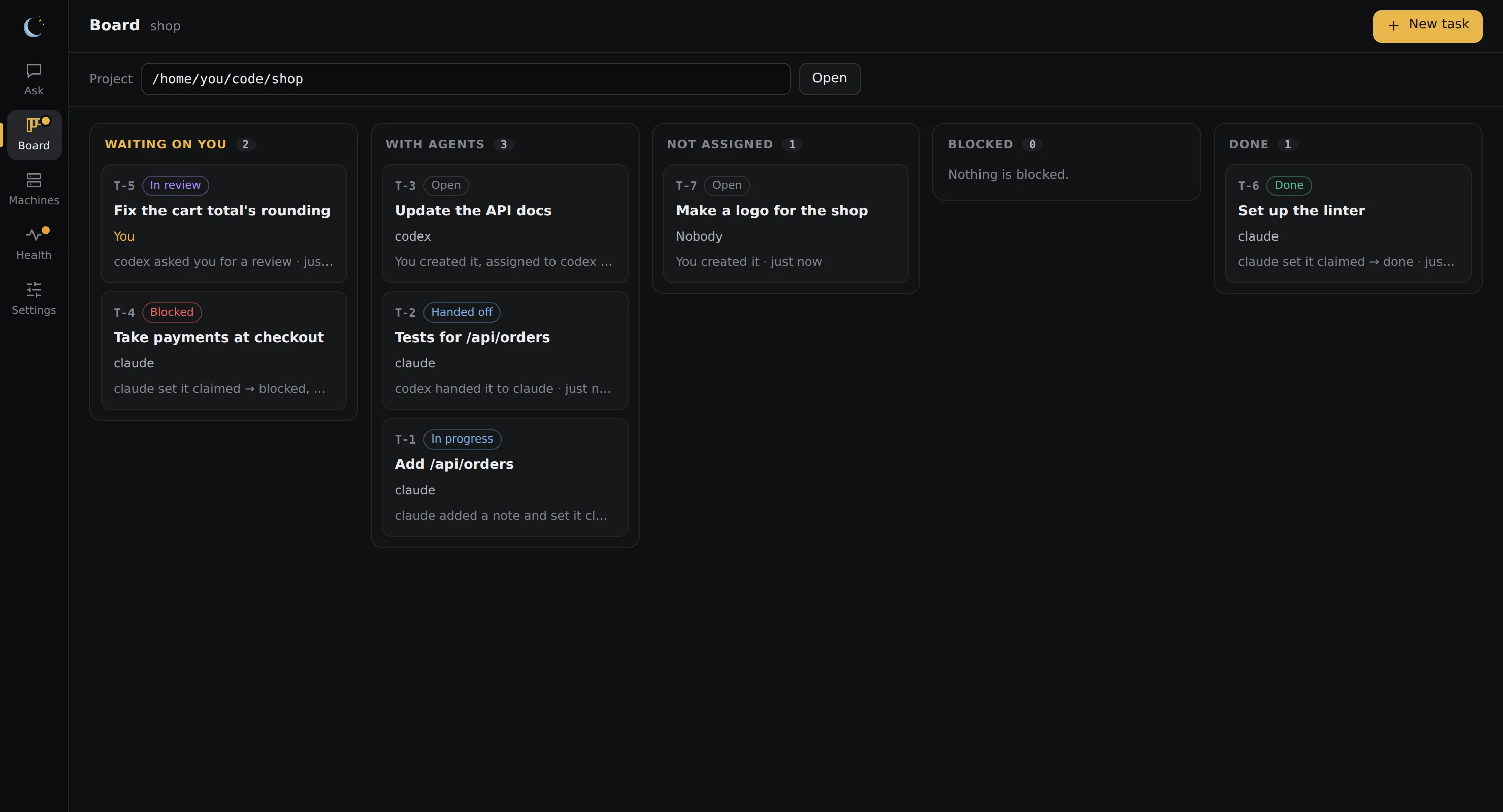
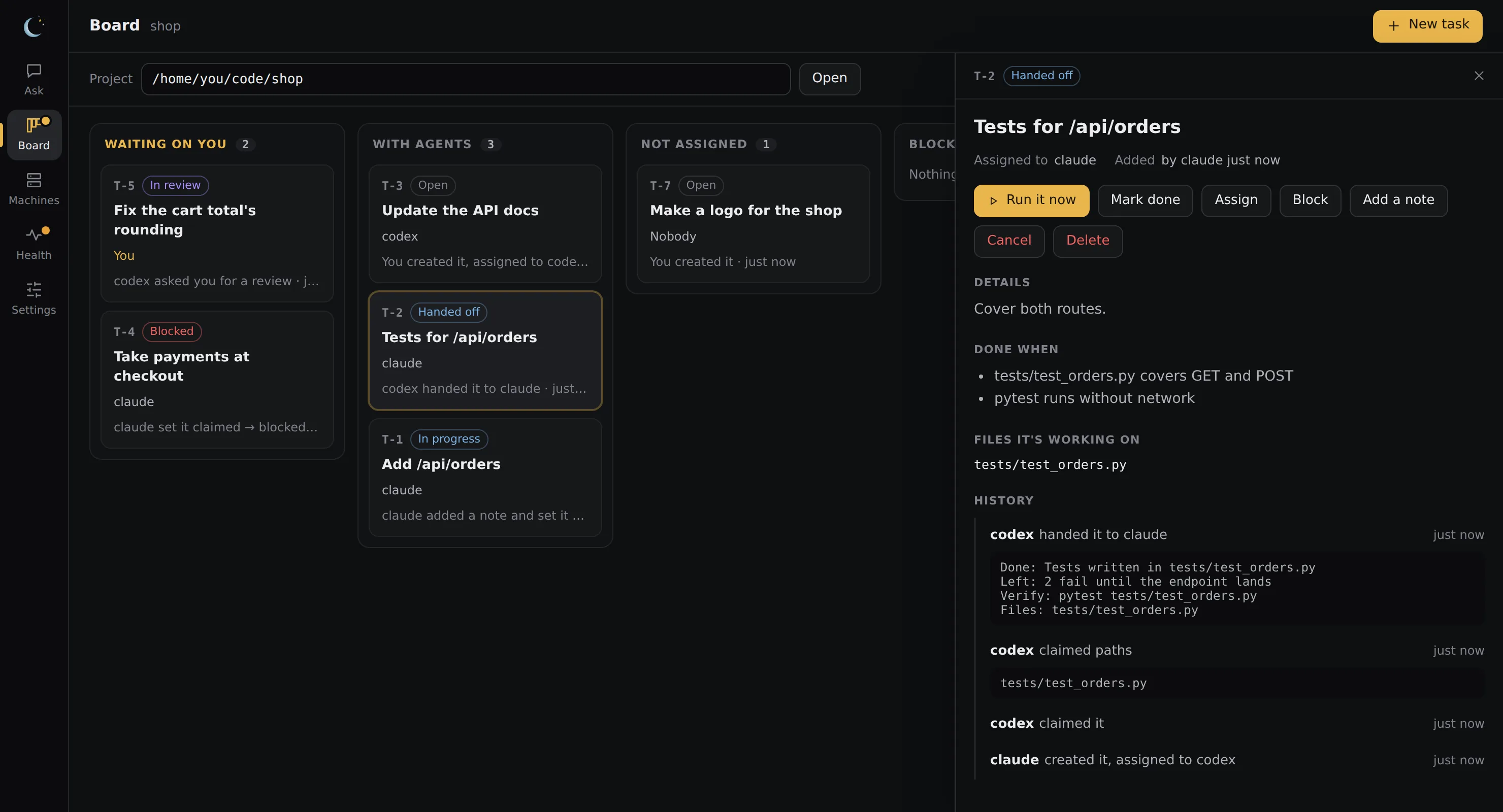
Open a task to read it, its acceptance checks, and its whole history, and to act on it:
- Run it now: pick an agent and what it does. Claude Code, Codex, OpenCode, your local models and the other agents Handoff finds can change files, each on a branch of its own. Any model can answer, or review your changes. Pictures are made by xAI or OpenAI with your key.
- Merge, on a finished task: it asks first, then merges the task's branch into the branch you have checked out on this computer, and tells you that nothing was pushed.
- Mark done, Assign, Block, Add a note, approve a review or send it back. Everything you do here is done as you, under the board's own rules.
- New task adds one.
Which model does the work, and what it cost
When you run an edit, the Board asks which model should do it:
- The agent's own model, as it's set up.
- One model, typed or picked from the list. For OpenCode, its free models come first, and a model on your computer is marked free.
- A chain of models, biggest first, up to four. The biggest plans the steps and the smaller ones build them. It starts as Fable 5.1 at low effort, then Opus 5.5, then Haiku 5.5, and you can change any of them.
Or switch on Auto: let Handoff pick the crew. The Board asks Handoff for a crew sized to the task and shows it as rows you can still change, each with its role, model and effort, plus All max and All low. Approve runs exactly the crew it showed. Auto is offered for edits on an agent that runs chains. How it picks.
Each model gets its own effort level, in its tool's own words, and the list offers only the levels that model takes. Answer and review runs have an effort choice too. When several agents answer, the choice sets the first one's level, and the others answer at their own settings. The picker says what each agent can reach: edits only, or its own permissions. An agent that runs with its own permissions (Kimi Code, Cline, OpenClaw, or one you added) has a Let … change files button, and nothing is approved for it until you press it.
For agents that report their cost, each card shows what its runs cost, the top bar shows what the whole board has spent, and each task has a What it used table: each model's tokens and an estimated cost at API prices. On a subscription, that's what the run would have cost; it counts toward your plan's limits instead. See Handoff for how a chain splits the work.
Before you approve a run, the form shows who takes over if a model hits its usage limit. The line If a model hits its usage limit, go on with … lists the next best models you have that Handoff doesn't know to cost more (in a chain written biggest first, more than its planner). Each has its own switch, so you can leave one out. Switch them all off and the run stops at the limit instead. When a model does take over, the run doesn't fail: the task's result says which model ran out and which one took over. More about it.
Pull requests are listed above the columns when the project's origin is on GitHub, GitLab or Codeberg, or your own Gitea, Forgejo, GitLab or GitHub Enterprise. Review… has the agent you pick review one; Fix… has Claude Code or Codex change it on a branch of its own. Nothing is pushed: when it's done, the Board shows the one command that adds the work to the pull request, for you to run once you've looked. Ixel only reads from the host. It never comments, approves or merges there.
Agent (beta)
The Agent works for you in a folder you pick. Give it a goal in plain words, and it reads the files itself, a few at a time. It asks you before it changes anything: you see the change to every file it writes or edits, and the exact text of every command. Nothing happens until you press Approve.
- A chat, like other agent apps. Type a goal, then follow-ups. The steps it took fold into one line ("Worked for 41 s · 5 steps") that opens to show each one. History has your earlier conversations.
- The / menu:
/new,/model,/folder,/fast,/effort,/computer,/attach,/memory,/stopand/help. Fast and the effort setting are also on the composer. - Photos, video and any file. Attach them to a message, or paste or drop them. It reads documents (PDF, Word, Excel, PowerPoint and more) as text, and shows pictures to a model that can see them; a video gives a few of its frames. Your attachments are kept in the Agent's own folder, not in the folder you picked.
- Memory and skills. It keeps notes about you and the work in plain files on your computer, and has skills it can load for a job, such as summarizing a folder or describing photos. Memory & skills opens them for you to read and edit.
- Any model you have, including a Claude model on your own API key. On an API key, the part of its instructions that stays the same is cached, so each later step costs less.
- It knows when to stop. Near the step limit, it's told how many steps are left, so it finishes with what it has. If it repeats the same action, it's stopped and told why.
What it can and can't touch
- The model never gets a shell or your files directly. It asks for actions and Ixel does them. Up to five reads, lists and searches run at once; writes, edits and commands come one at a time and wait for you.
- When it reads, lists, searches or edits files itself, it stays in the folder you picked, can't follow a link out of it, and can't touch files that look like secrets (
.env, keys, Ixel's own settings). Commands get none of the keys saved in Ixel. - On a Mac and on Linux, an approved command runs in a sandbox (the Mac's own; on Linux, bubblewrap, which you install). There it has no network, writes only in that folder and the temp folder, and is kept away from your secrets: it can't read
~/.ssh, cloud logins (AWS, Google Cloud, Azure, GitHub's CLI and others), your keychains, browser data, or Ixel's own settings and keys. On Linux it can't reach your desktop session either (D-Bus, systemd, ssh-agent or the X server). It can read your other files, including ones outside the folder and a project's own.env, and its output goes to the model. So read each command before you approve it. - On Windows, a command is only partly sandboxed, and the approval says so: it can write only in that folder and a private temp folder, but it has the network and can read any of your files, secret ones included. On Linux without a working bubblewrap, or on Windows when its sandbox can't start, there's no sandbox and the command runs as you; the approval says that too.
- Computer access is off until you switch it on for a run and confirm a warning. Then it can work anywhere in your home folder (still not in
~/.ssh, your keychains or browser profiles), run commands with the network, take screenshots and open apps, files and links, on a Mac, Windows or Linux. Every change, command, screenshot and open still waits for you to press Approve, and an approved command can do anything you can, so turn it on only for a model and a goal you trust. It can't move your mouse or type for you.
Add a tool from a GitHub link
Give the Agent a link to an open-source tool and it reads the project, tries it in a scratch folder, and writes a short add-on card for it: what the tool is, the exact version, and in plain words what it may touch. A card the Agent writes always stays off, marked "Written by the agent, not reviewed", until you read it and approve it in Settings, Add-ons.
Once a tool-server card is on, the Agent can call that tool. The first call in each run asks you, showing the tool and what it's given. On a Mac and on Linux, the tool runs in the same sandbox as commands: it gets the network only if its card says so, and writes only where its card allows. Like commands, it can't read your secrets but can read your other files. On Windows, add-on tools aren't sandboxed.
Machines
Machines lists your SSH servers, from a $5 VPS to the computer in the closet, and the OpenClaw or Hermes agent on each.
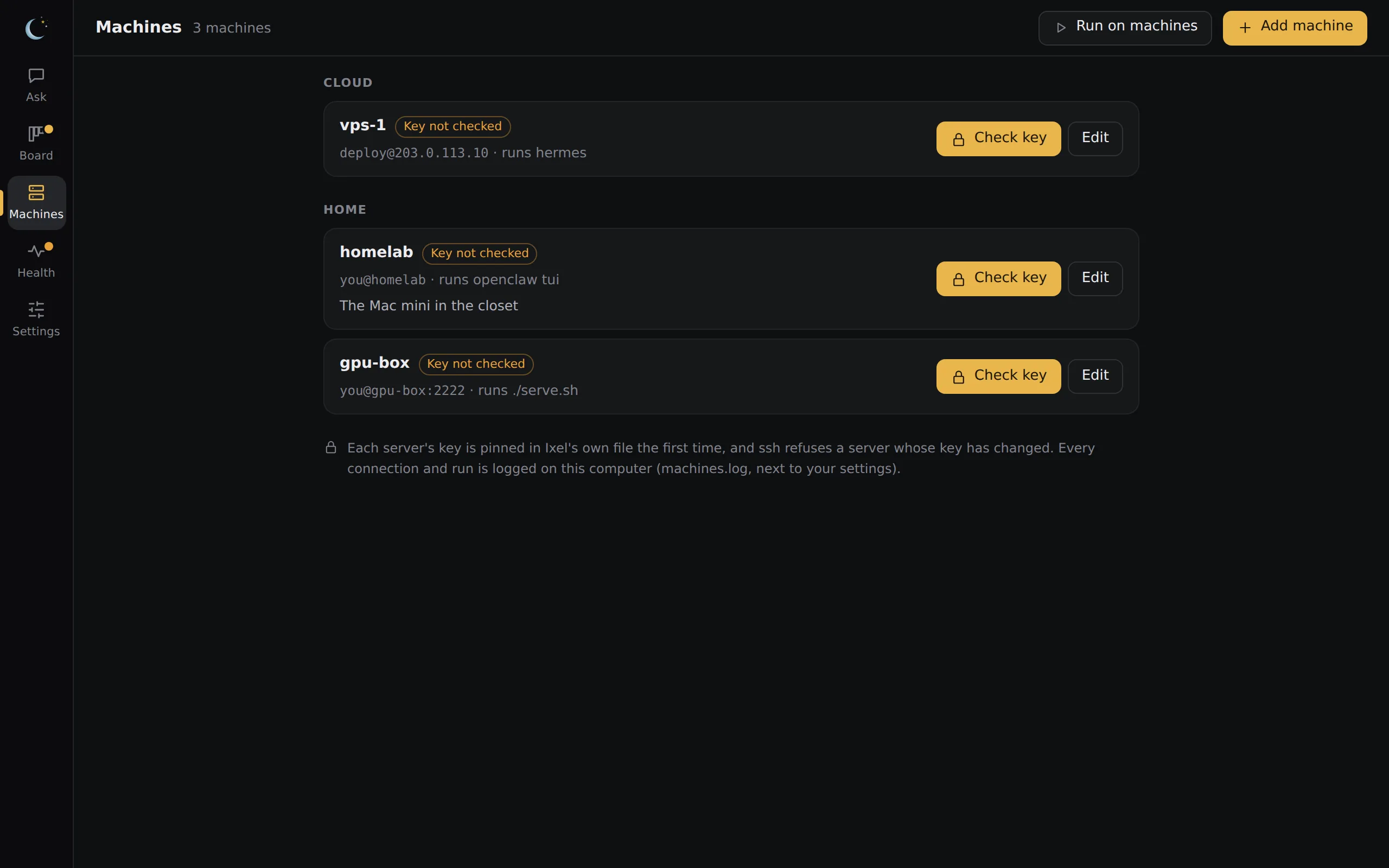
- Add machine takes its address (or a
Hostfrom your~/.ssh/config), user, port and key file, and what runs when you connect: the agent's own command, a shell, or a command you type. Import brings in the hosts in your~/.ssh/config. - Check key asks the server for its key without signing in, and shows you its fingerprint. Once you say yes, it's pinned, and from then on
sshitself refuses that machine if its key ever changes. - Connect opens a terminal running
ssh, so a password or passphrase prompt works there. Run on machines runs one command you type on the machines you pick, up to 8 at once, and shows how each one ended and its output.
Ixel uses the ssh you already have (on Windows, the OpenSSH Client that comes with it). Every connection and run is noted in a log on your computer; Privacy says where.
Health
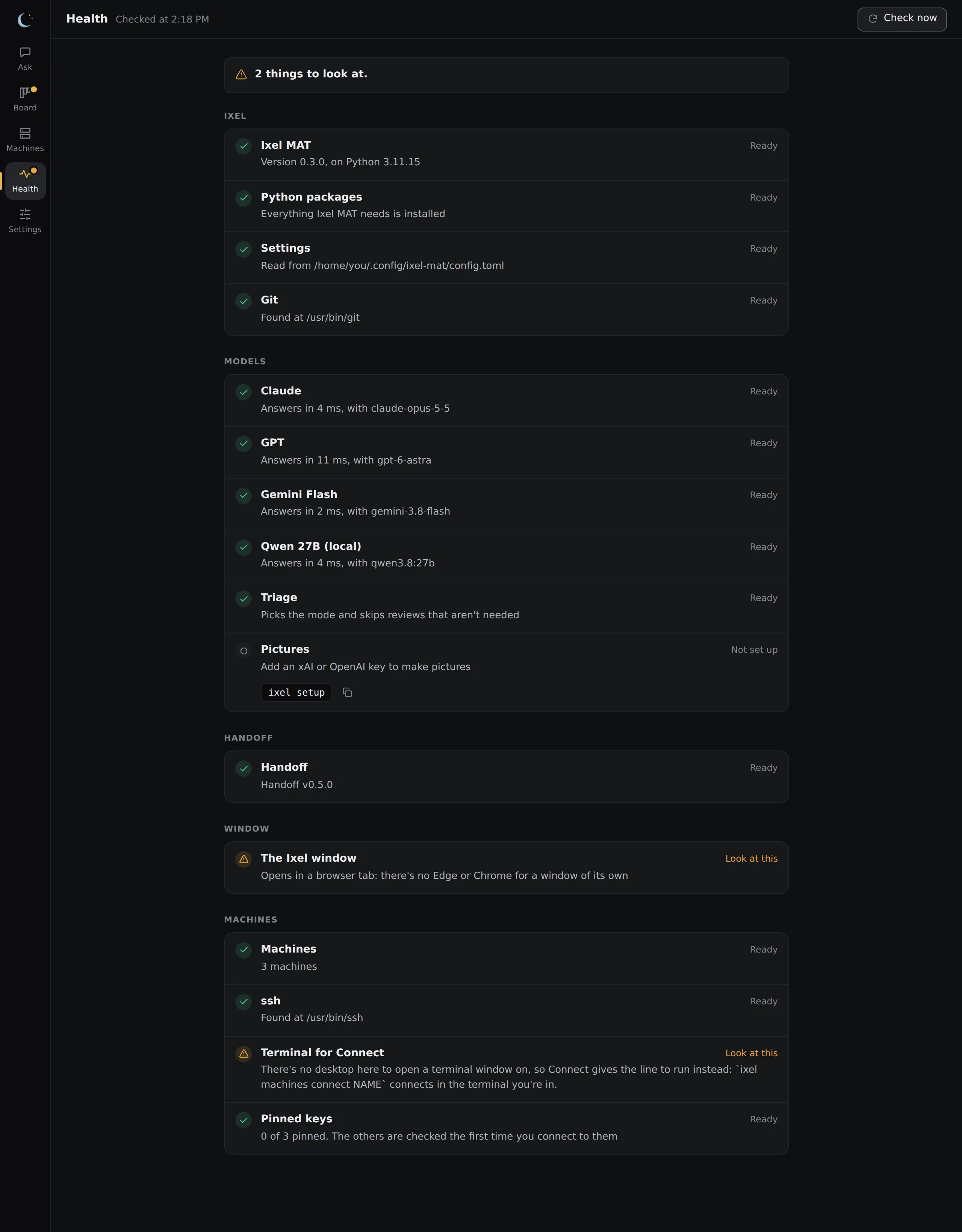
Health shows whether each part of Ixel is ready: your settings, each model, Handoff, Git, the window, and SSH once you have machines. Each problem comes with the one line that fixes it, ready to copy. Opening the page sends nothing anywhere. Check now also asks each model's server whether it answers and accepts your key (without asking the model anything), and asks each program for its version. A dot on the rail says when something needs fixing. In a terminal, ixel doctor runs the same checks.
Settings
Settings holds your choices among what's already set up, and saves each one as you make it:
- Models: which models sit on the panel, and which model and effort each one uses, picked from a list. Effort offers only the levels that model takes, in its company's own words. Claude Code also has an Ultracode switch for its mode that runs several agents at once. Antigravity stays off the panel until you switch it on, and shows Google's terms warning first.
- Models on your computers: add models from Ollama, LM Studio and other model servers of yours (on this computer or another one), move them, or take them off. Under an Ollama server, Get a model downloads one by name. Local models has pictures.
- Asking: the mode Ask starts on, who writes the verdict, and Private, which has only the models on your own computers answer. See Private.
- Saver and Triage: the big model that verifies, the models that draft, and the model that decides. Which model for each job has picks.
- Pictures and Sound: which models see pictures, and which service makes pictures or writes out sound.
- Appearance: System (the default) matches your computer's light or dark mode. Pick Light or Dark to keep it that way.
- Keys: paste, replace or remove a key. A saved key is never shown again.
- Add-ons: open-source tools you can switch on, each described by a short card. See Add-ons.
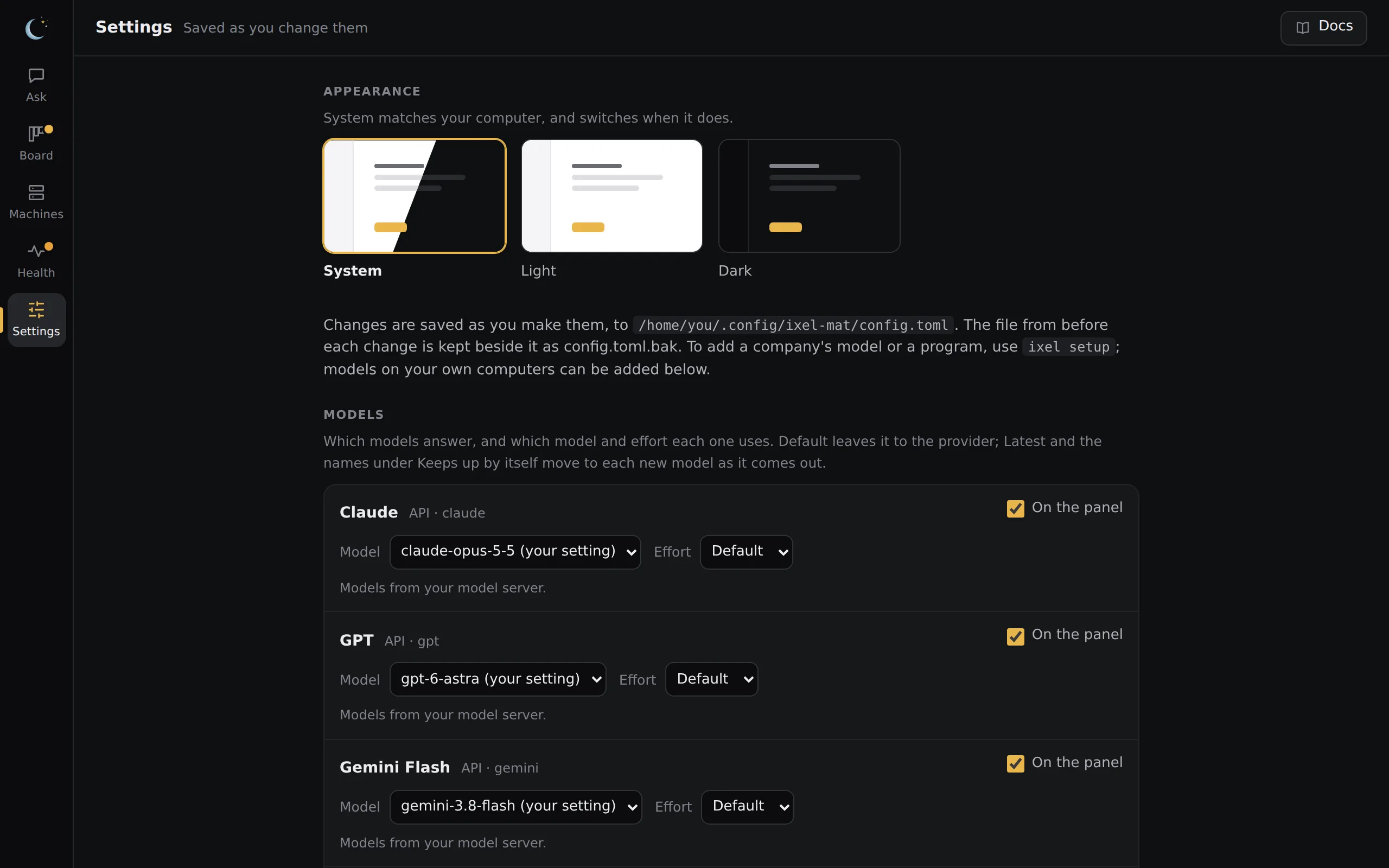
Settings changes only those lines of your settings file and keeps your comments. Before each change, the old file is kept as config.toml.bak. If the file has changed since the page read it, the page shows you the new version instead of saving over it. To add a company's model or a program, or to change any other command, address or key name, use ixel setup or edit the file itself. The Docs button at the top of the page opens these docs in your browser. Forget, at the bottom, deletes your last ixel review conversation and the Machines log (what Ixel keeps).
Add-ons
Ixel doesn't build every outside tool in. Instead, each one is described by a short card (an addon.toml file) that says what the tool is, the exact version to install, and in plain words what it may do: which folder it may write to, whether it may use the internet, and which programs Ixel may run for it. You decide which tools you trust.
- Turning one on shows the card first: what it may do, with warnings for folder access, the internet and programs, its license terms, and where it comes from. Nothing is downloaded until you press Approve and turn on.
- Ixel installs exactly that version from GitHub and checks every file against the card's fingerprint before using it, and again each time it's about to read or run them. Files that have changed since are never used. Turning it off removes its files.
- Any change to a card, even one character, switches it off with "Changed since you approved it" until you approve it again.
- Diagram Design (MIT, by Cathryn Lavery) comes with Ixel and stays off until you turn it on. It adds Diagrams to Ask.
- Cards the Agent writes (from a GitHub link) show as "Written by the agent, not reviewed". The Agent can never turn a card on or widen what an approved card may do.
Cards and their files are in ~/.ixel/addons. The card format is in addon-cards.md, for anyone who wants to write one by hand.